

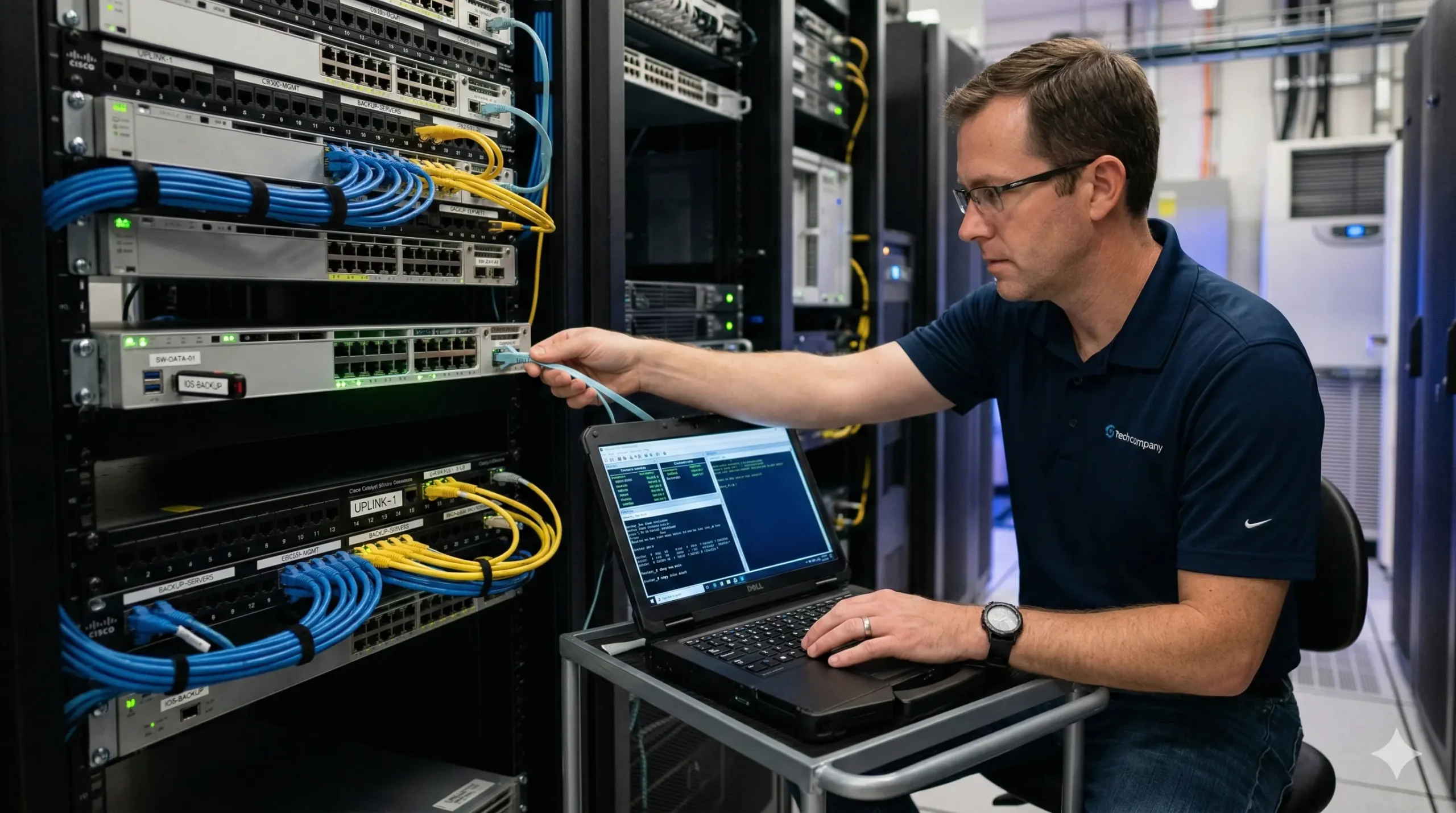
Managing Cisco routers and switches goes far beyond typing configuration commands into a terminal. The real measure of a competent network engineer is not whether they can build a network, but whether they can recover one. Hardware fails. Humans make mistakes. A firmware bug can bring down an entire branch office. When any of these events happen, the difference between a five-minute recovery and a five-hour outage comes down to one thing: how well you managed your device files before the crisis hit.
This guide walks you through the entire lifecycle of Cisco IOS device management, from understanding where your device stores its files, to backing up configurations and IOS images, to performing firmware upgrades and emergency factory resets. Along the way, you will find links to dedicated step-by-step tutorials for each task, so you can go as deep as you need on any single topic.
Think of this as the table of contents for your device management playbook. Each section covers the strategic “why” and “when” for a particular category of tasks, while the linked tutorials provide the tactical “how” with exact commands and screenshots. Whether you are studying for the CCNA or managing production infrastructure, this is the roadmap you need.
Understanding the Foundation: Cisco Memory and Navigation
Before you can manage files on a Cisco device, you need to understand where those files live. Every Cisco router and switch uses several distinct types of memory, and each one serves a specific purpose in the boot process and daily operation of the device.
Hardware Architecture
Cisco devices rely on four primary memory types. Confusing them is one of the most common mistakes new engineers make, and it can lead to catastrophic errors like accidentally erasing the wrong file store. Here is a quick reference:
- RAM – Volatile memory that holds the running-config, routing tables, and ARP cache. All data is lost on reboot.
- ROM – Contains the bootstrap program and a minimal IOS image used for recovery (ROMmon mode).
- NVRAM – Non-volatile memory that stores the startup-config, which persists through reboots.
- Flash – Non-volatile storage that holds the IOS image file itself. This is the primary file system you will interact with.
For a full breakdown of each memory type, how they interact during the boot sequence, and what happens when each one fails, read our detailed guide on the memory types used in a Cisco router.
Navigating the File System
Once you understand where files are stored, you need to know how to view them directly on the device. Cisco IOS includes built-in tools for examining file contents without transferring them off the device first. This is particularly useful when you need to quickly verify a configuration or check a log file during a troubleshooting session.
The Cisco IOS More Command is one of the most underused utilities in the CLI. It allows you to page through the contents of any file in Flash or NVRAM, similar to the more command in Linux. Learning to use it effectively can save you significant time during both routine maintenance and emergency troubleshooting.
Backup Strategies: Protecting Your Configuration
There is one rule every network engineer should treat as sacred: never make a change without a backup. Configuration files represent hours, sometimes weeks, of careful work. A single mistyped command can wipe out all of it. The good news is that Cisco IOS supports multiple protocols for transferring configuration files to external servers, so you can choose the method that best fits your environment.
Standard Backups with TFTP
TFTP (Trivial File Transfer Protocol) is the most commonly used method for backing up Cisco configurations, especially in lab environments and smaller networks. It is simple to set up, requires minimal server configuration, and works reliably across nearly every version of IOS. If you are just getting started with device management, TFTP is the place to begin.
Our tutorial on how to backup and restore Cisco switch/router configuration files using TFTP server walks you through the entire process, from setting up a TFTP server to executing the copy commands on the device.
Alternative Protocols with FTP
TFTP has limitations. It does not support authentication, it can be unreliable over congested networks, and its maximum file size restrictions can become a problem with larger configurations. FTP addresses all of these issues by providing username and password authentication, TCP-based reliable transport, and support for larger file transfers.
If your network requires authenticated file transfers or you are working in a larger environment, learn how to backup and restore Cisco router/switch configuration files using FTP.
Secure Methods with SCP
In production environments where security compliance is non-negotiable, neither TFTP nor FTP is acceptable. Both protocols transmit data in plaintext, which means anyone with a packet sniffer on the network could potentially intercept your configuration files, including sensitive information like SNMP community strings and routing protocol passwords.
SCP (Secure Copy Protocol) solves this by encrypting all data in transit over an SSH connection. It uses the same authentication mechanisms as SSH, meaning you can leverage your existing SSH key infrastructure. For production environments requiring encryption, use our guide on how to backup/restore Cisco switch/router configuration files using an SCP server. This is increasingly the standard in enterprise environments where compliance audits scrutinize how sensitive network data is handled.
Here is a quick comparison to help you choose:
| Protocol | Authentication | Encryption | Best For |
|---|---|---|---|
| TFTP | None | None | Labs, small networks |
| FTP | Username/Password | None | Mid-size networks, large files |
| SCP | SSH keys / Password | Full (SSH) | Production, compliance environments |
IOS Image Management: Storage and Redundancy
Backing up your configuration is only half the equation. The configuration file tells the device what to do, but the IOS image is the operating system that actually runs the device. If your Flash memory becomes corrupted or you accidentally delete the IOS image, the device will not boot. Having a backup copy of your IOS image stored on an external server is not optional in a professionally managed network — it is a requirement.
Using TFTP for Images
Just as TFTP can back up configuration files, it can also transfer IOS image files. The process is straightforward and works well in environments where simplicity is the priority. For step-by-step instructions, see our walkthrough on how to backup Cisco switch/router images using TFTP server.
Keep in mind that IOS image files are significantly larger than configuration files, often ranging from 50 MB to over 500 MB depending on the platform and feature set. TFTP can struggle with files of this size on congested networks, so plan your transfers during maintenance windows when possible.
High-Speed Transfers with FTP
When transferring large IOS images, FTP is often the better choice. Its TCP-based transport is more reliable for large files, and its support for authentication means you can control who has access to your image repository. Our guide on how to backup Cisco switch/router images using FTP server covers everything from server preparation to verifying file integrity after the transfer.
Secure Image Transfers with SCP
For organizations that must comply with security frameworks like PCI DSS, HIPAA, or ISO 27001, transmitting IOS images over unencrypted protocols is a compliance violation. SCP provides the encrypted transport you need while maintaining the simplicity of a single copy command. Learn how to implement this in our guide on how to backup and restore Cisco switch/router IOS images using SCP server.
Maintenance: Upgrading and Erasing
Keeping your Cisco devices running the latest stable IOS version is one of the most important things you can do for network security and performance. Cisco regularly releases updates that patch security vulnerabilities, fix bugs, and add new features. Equally important is knowing how to properly sanitize a device when it is being decommissioned or repurposed.
Performing IOS Upgrades
Upgrading IOS is the task that makes most junior engineers nervous, and for good reason. A botched firmware upgrade can brick a device. But with the right preparation and a clear procedure, it is a routine operation that you will perform many times throughout your career. There are several methods available depending on your network setup and physical access to the device, including network-based transfers using FTP or TFTP, local transfers via USB drive, and even recovery transfers through a console cable connection when the device has no network connectivity.
Our comprehensive walkthrough on how to upgrade Cisco IOS for a router or switch via FTP, TFTP, USB drive, or console cable covers all four methods in detail, including pre-upgrade checklists, verification commands, and rollback procedures.
Sanitizing Devices
When a device is being retired, transferred to another department, or returned from a lease, you need to ensure that all sensitive configuration data is completely removed. Simply deleting the startup configuration is not always sufficient, as some data can persist in Flash memory or NVRAM.
Follow the proper procedure for how to erase configuration files on a Cisco router or switch to ensure no sensitive data remains on the device.
Emergency Recovery: Factory Resets and Password Recovery
Every network engineer will eventually face a situation where normal access to a device is lost. Maybe a former employee set a password and left without documenting it. Maybe a configuration change locked everyone out. Maybe the device is in a boot loop due to a corrupted configuration. Whatever the cause, you need a way back in.
Router Recovery
Cisco routers support a well-documented password recovery procedure that involves interrupting the boot process, changing the configuration register, and resetting the device. This procedure works even when you have no access to the enable password or the console login credentials.
Our guide on how to reset a Cisco router to factory defaults in CLI w/wo password covers both scenarios: resetting when you have CLI access and recovering access when you are completely locked out.
Switch Recovery
The factory reset process for Cisco switches differs from routers in several important ways. Switches use a different boot loader (often accessed by holding the MODE button during startup), and the file system structure varies between switch platforms like the Catalyst 2960, 3560, and 9000 series. Additionally, switches often manage VLANs through a separate vlan.dat file that must be deleted independently from the main configuration to achieve a true factory reset.
For platform-specific instructions covering both CLI-based resets and physical recovery methods, see our guide on how to reset a Cisco switch to factory defaults w/wo CLI.
Conclusion: Building a Management Routine
The individual tasks covered in this guide — backing up configurations, securing IOS images, upgrading firmware, and recovering from failures — are not one-time events. They need to be part of a regular, documented maintenance routine. The best network engineers schedule configuration backups automatically, maintain a library of IOS images for every device model in their network, and test their recovery procedures before they need them in a real emergency.
Here is a simple framework to get started:
- After every change – Back up your running-config immediately.
- After every firmware update – Back up the new IOS image to your file server.
- Monthly – Verify your backups by restoring them in a lab environment.
- Quarterly – Review Cisco’s security advisories and plan any needed upgrades.
- Always – Document your recovery procedures so any team member can execute them under pressure.
A good practice is to maintain a spreadsheet or network management database that tracks, for each device, the current IOS version, the date of the last configuration backup, the location of the backup files, and the assigned maintenance window. This level of documentation transforms device management from a reactive scramble into a proactive discipline.
If you want hands-on practice with every procedure covered in this guide, our CCNA Lab Manual gives you pre-built lab scenarios where you can safely experiment with backups, upgrades, and recovery procedures without risking production equipment. The best time to learn these skills is before you need them.
